Difference between revisions of "Viewing Objects with Semantic Errors"
| Line 20: | Line 20: | ||
==Search by LCD number== | ==Search by LCD number== | ||
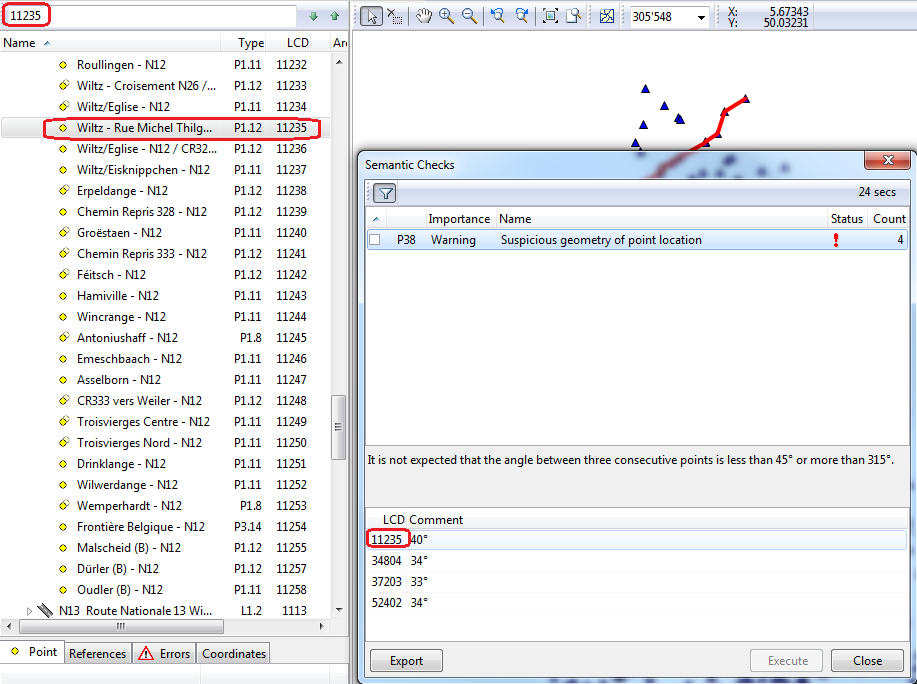
| − | To identify objects with potential errors as perceived by Structural Checks, use the [[Search Tree|search panel]] where you type in or paste (from an Excel [[Export Combined Report|Combined Report]]) the LCD number and start searching the object list by hitting the ENTER key | + | To identify objects with potential errors as perceived by Structural Checks, use the [[Search Tree|search panel]] where you type in or paste (from an Excel [[Export Combined Report|Combined Report]]) the LCD number and start searching the object list by hitting the ENTER key: |
[[File:VisualizeRoad.png|link=|alt=]] | [[File:VisualizeRoad.png|link=|alt=]] | ||
Revision as of 16:47, 8 May 2012
After having carried out Structural or Semantic Checks you might want to go through the objects showing errors and collect more information on them. On this page you learn how to find the respective objects and view the error details.
Semantic Errors: Active Filter
Open the Edit Visibility Settings window, set the Active Filter to Semantic Errors and select all test records you would like to make visible in object list and map:

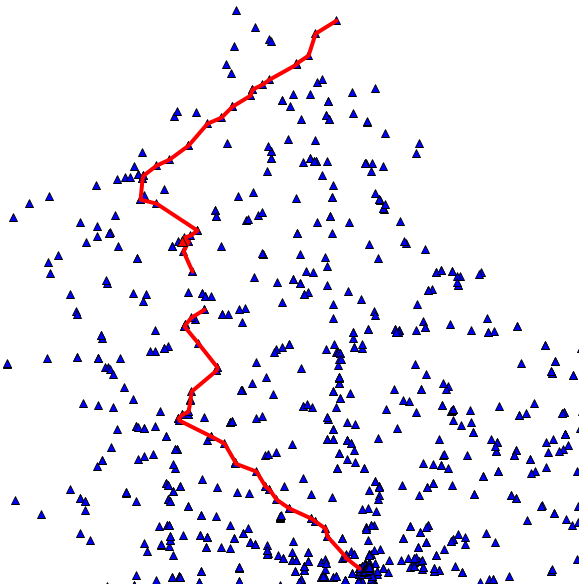
Resulting from these settings, only the objects containing potential errors identified by Semantic Checks are shown in object list and map.
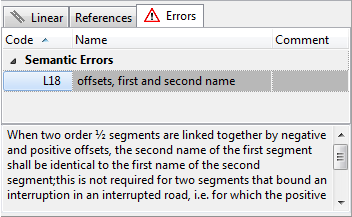
Now click an object in the map or object list. In the details section (below the object list) consult the Errors tab to view the errors identified by the check. Click an error record in the tab to display the full error explanation:
Search by LCD number
To identify objects with potential errors as perceived by Structural Checks, use the search panel where you type in or paste (from an Excel Combined Report) the LCD number and start searching the object list by hitting the ENTER key: