Difference between revisions of "Edit Visibility Settings"
| (12 intermediate revisions by the same user not shown) | |||
| Line 1: | Line 1: | ||
| + | [[:Category:View|'''View''' menu]] → [[file:Edit visibility settings.png]] | ||
| + | |||
[[:Category:Toolbar View|Toolbar '''View''']] → [[File:ImageList-140.png|link=|alt=]] | [[:Category:Toolbar View|Toolbar '''View''']] → [[File:ImageList-140.png|link=|alt=]] | ||
<br> | <br> | ||
<br> | <br> | ||
| − | + | This function allows you to choose what data you whant to see displayed on the map and in the [[Data Tree|data tree]]. | |
| − | |||
<br> | <br> | ||
<br> | <br> | ||
[[File:EditVisibilitySettings.png|link=|alt=]] | [[File:EditVisibilitySettings.png|link=|alt=]] | ||
| + | |||
| + | |||
*'''Location Types''' | *'''Location Types''' | ||
| − | + | :By ticking the corresponding boxes, various 'Area', 'Linear' and 'Point' elements are included on the map and in the data tree. | |
| − | Example which would result in no 'Area' elements, all 'Linear' elements and 'Ponit' elements P3 to P5 being shown. | + | |
| − | [[file:Location Types.png]] | + | :'''Example''' which would result in no 'Area' elements, all 'Linear' elements, and 'Ponit' elements P3 to P5 being shown. |
| + | :[[file:Location Types.png]] | ||
| + | |||
| + | |||
*'''Semantic Errors''' | *'''Semantic Errors''' | ||
| − | + | :The window displays all the errors found during the [[Semantic Checks|semantic checks]]. Ticking a box and clicking OK results in the corresponding errors being shown in the tree and on the map. | |
| − | *'''Link Editor Checks''' | + | |
| − | + | ||
| + | *'''Link Editor Checks''' (Only available in TMC Studio 'Editor') | ||
| + | :The window displays potential errors, generated when editing links. Ticking a box and clicking OK results in the corresponding errors being shown in the tree and on the map. | ||
| + | |||
| + | |||
| + | To deactivate any active filters, press [[File:ImageList-147.png|link=|alt=]]. | ||
| + | |||
[[Category:Button]] | [[Category:Button]] | ||
[[Category:Toolbar View]] | [[Category:Toolbar View]] | ||
[[Category: View]] | [[Category: View]] | ||
Latest revision as of 17:52, 3 December 2013

Toolbar View → 
This function allows you to choose what data you whant to see displayed on the map and in the data tree.
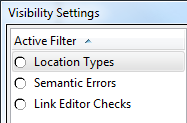
- Location Types
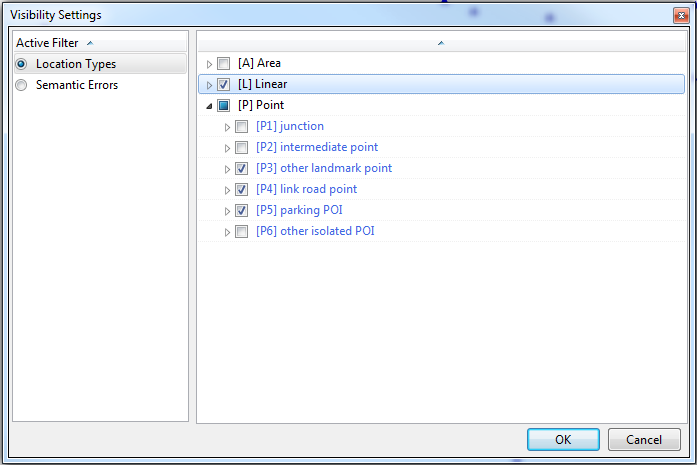
- By ticking the corresponding boxes, various 'Area', 'Linear' and 'Point' elements are included on the map and in the data tree.
- Example which would result in no 'Area' elements, all 'Linear' elements, and 'Ponit' elements P3 to P5 being shown.

- Semantic Errors
- The window displays all the errors found during the semantic checks. Ticking a box and clicking OK results in the corresponding errors being shown in the tree and on the map.
- Link Editor Checks (Only available in TMC Studio 'Editor')
- The window displays potential errors, generated when editing links. Ticking a box and clicking OK results in the corresponding errors being shown in the tree and on the map.
To deactivate any active filters, press  .
.
