Difference between revisions of "Structural Checks"
| (20 intermediate revisions by 2 users not shown) | |||
| Line 1: | Line 1: | ||
| − | + | [[:Category:Checks|'''Checks''' menu]] → [[Structural Checks]] | |
| − | Please | + | Please note: |
| + | *Structural Checks cannot be performed by the user but are carried out automatically when [[Import Location Table Exchange Format|importing Location Tables from Exchange Format files]]. | ||
| + | *They are mandatory and have to be passed by all import files, otherwise the import is interrupted. | ||
| + | *Therefore, if during an import routine an error occurs, the window shown below opens by itself. Any errors have to be directly solved in the import data, not in tmcStudio. | ||
| + | *Tables or files, respecively, and rows affected by the error are displayed in the Structural Checks window. | ||
| − | [[ | + | To learn about '''Status''' symbols ([[file:icon_pass-test.png|alt=|link=]]/[[file:icon_fail-test.png|alt=|link=]]), filtering checks, viewing check details or exporting check results to Excel see: '''[[Semantic Checks]]''' |
| − | |||
| − | |||
| − | |||
| − | |||
| − | |||
| − | |||
| − | |||
| − | |||
| − | |||
| + | [[File:StructuralChecks1.png|link=|alt=]] | ||
| − | |||
| − | |||
| − | |||
| − | |||
| − | |||
| − | |||
| − | |||
| − | |||
| − | |||
| − | |||
| − | |||
| − | |||
| − | |||
| − | |||
| − | |||
| − | |||
| − | |||
| − | |||
| − | |||
| − | |||
| − | |||
| − | |||
| − | |||
| − | |||
| − | |||
| − | |||
| − | |||
[[Category:Checks]] | [[Category:Checks]] | ||
| + | [[Category: Export]] | ||
| + | [[Category: Import]] | ||
Latest revision as of 17:18, 3 December 2013
Checks menu → Structural Checks
Please note:
- Structural Checks cannot be performed by the user but are carried out automatically when importing Location Tables from Exchange Format files.
- They are mandatory and have to be passed by all import files, otherwise the import is interrupted.
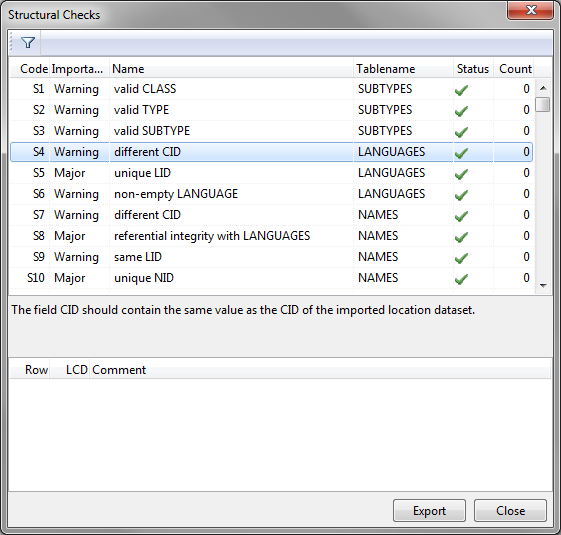
- Therefore, if during an import routine an error occurs, the window shown below opens by itself. Any errors have to be directly solved in the import data, not in tmcStudio.
- Tables or files, respecively, and rows affected by the error are displayed in the Structural Checks window.
To learn about Status symbols ( /
/ ), filtering checks, viewing check details or exporting check results to Excel see: Semantic Checks