Difference between revisions of "Edit Visibility Settings"
| Line 9: | Line 9: | ||
*'''Location Types''' | *'''Location Types''' | ||
**By ticking the corresponding boxes, various 'Area', 'Linear' and 'Point' elements are included on the map and in the [[Tree-View|tree]] | **By ticking the corresponding boxes, various 'Area', 'Linear' and 'Point' elements are included on the map and in the [[Tree-View|tree]] | ||
| − | Example which would result in no 'Area' elements, all 'Linear' elements and 'Ponit' elements P3 to P5 being shown. | + | **Example which would result in no 'Area' elements, all 'Linear' elements and 'Ponit' elements P3 to P5 being shown. |
| − | [[file:Location Types.png]] | + | **[[file:Location Types.png]] |
*'''Semantic Errors''' | *'''Semantic Errors''' | ||
**Activate the Filter [[Semantic Checks|Semantic Errors]] means, that all the errors found in the file are shown. When selecting them, they are directly shown in the tree and can be edited. | **Activate the Filter [[Semantic Checks|Semantic Errors]] means, that all the errors found in the file are shown. When selecting them, they are directly shown in the tree and can be edited. | ||
Revision as of 11:43, 14 August 2013
Toolbar View → 
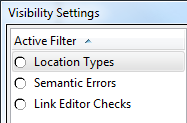
The visibility settings are are manages by the window opened when clicking the button Edit Visibility Settings.
By working with this function, visibility is changed regarding the and and the map.
- Location Types
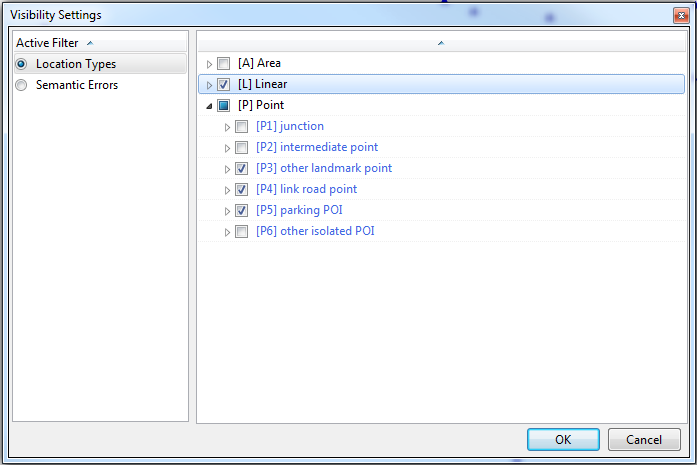
- By ticking the corresponding boxes, various 'Area', 'Linear' and 'Point' elements are included on the map and in the tree
- Example which would result in no 'Area' elements, all 'Linear' elements and 'Ponit' elements P3 to P5 being shown.
- Semantic Errors
- Activate the Filter Semantic Errors means, that all the errors found in the file are shown. When selecting them, they are directly shown in the tree and can be edited.
- Link Editor Checks
- ???

