Difference between revisions of "Inhaltliche Prüfung"
(Created page with "Menü Prüfung → Inhaltliche Prüfung The '''Semantic Checks''' window is accessed either by the '''Checks''' menu or - in case of...") |
|||
| Line 1: | Line 1: | ||
| − | [[:Category:Menü Prüfung|Menü Prüfung]] → | + | [[:Category:Menü Prüfung|Menü Prüfung]] → Inhaltliche Prüfung |
| − | + | Das Fenster '''Inhaltliche Prüfung''' kann entweder über die Menüoption '''Prüfung''' ausgewählt werden oder erscheint - bei entsprechender Option - nach dem '''[[Location Table Exchange Format importieren|Import einer Location Table]]'''. | |
[[file:window_semantic-checks.png|alt=|link=]] | [[file:window_semantic-checks.png|alt=|link=]] | ||
| + | Das Fenster listet alle Resultate der durchgeführten Prüfung auf. Die Spalte '''Status''' enthält folgende Symbole: | ||
| − | + | [[file:icon_pass-test.png|alt=|link=]] für eine erfolgreiche Überprüfung. | |
| − | + | [[file:icon_fail-test.png|alt=|link=]] für eine fehlgeschlagene Überprüfung. Das bedeutet, dass mindestens eines der überprüften Objekte mögliche Fehler enthält. | |
| − | |||
| − | [[file:icon_fail-test.png|alt=|link=]] | ||
With the latter, the column '''Count''' states the number of objects which did not pass the test. | With the latter, the column '''Count''' states the number of objects which did not pass the test. | ||
Revision as of 09:31, 8 October 2015
Menü Prüfung → Inhaltliche Prüfung
Das Fenster Inhaltliche Prüfung kann entweder über die Menüoption Prüfung ausgewählt werden oder erscheint - bei entsprechender Option - nach dem Import einer Location Table.
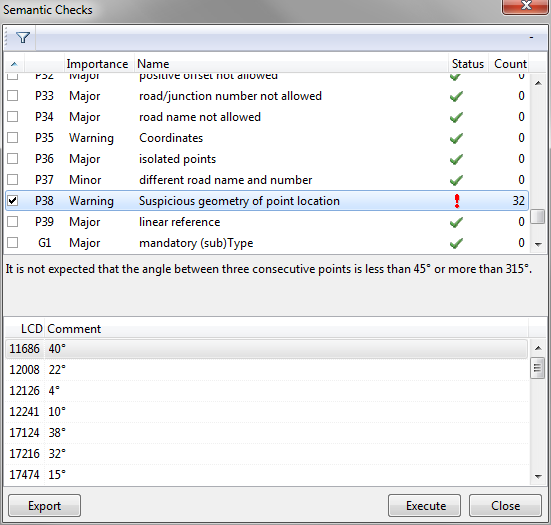
Das Fenster listet alle Resultate der durchgeführten Prüfung auf. Die Spalte Status enthält folgende Symbole:
 für eine erfolgreiche Überprüfung.
 für eine fehlgeschlagene Überprüfung. Das bedeutet, dass mindestens eines der überprüften Objekte mögliche Fehler enthält.
With the latter, the column Count states the number of objects which did not pass the test.
Click any record (i. e. line) to view the detailed explanation of the corresponding test:

Further details regarding the tests are given in the .PDF document 'TMC Location Table Requirements' that can be found in the directory where your TMC program is installed.
Clicking any test with a "fail" status will display a commented list of the objects which caused the test to fail, in the lower part of the window:

To only display failed tests, click the button Show Only Checks Containing Errors: 

To perform (or repeat) one or several tests, tick the box in the corresponding record(s) and click the Execute Button. To (un)tick all tests, right click in the test list and choose the corresponding option:


The Export Button allows you to write the test results to an Excel file. After clicking the button you first have to enter a directory to save the Excel file in. Once that has been given Excel should open automatically, displaying the information.
Note that this Excel file contains numerous worksheets!
