Difference between revisions of "Semantic Checks"
| Line 2: | Line 2: | ||
| − | The [[Semantic Checks]] window is accessed either by the '''Checks''' menu or - in case the corresponding option | + | The [[Semantic Checks]] window is accessed either by the '''Checks''' menu or - in case of the corresponding option having been set - as a part of the [[Import Location Table Exchange Format]] function. |
This window lists all checks executed on the data. The column '''Status''' displays | This window lists all checks executed on the data. The column '''Status''' displays | ||
| Line 10: | Line 10: | ||
[[file:icon_fail-test.png|alt=|link=]] for a failed test. | [[file:icon_fail-test.png|alt=|link=]] for a failed test. | ||
| + | For the latter, the column '''Count''' states the number of objects which did not pass the test. | ||
| − | To display failed tests only, click the button | + | |
| + | Click any record (line) to view the detailed explanation of the respective test: | ||
| + | |||
| + | [[file:window_test-explan.png|alt=|link=]] | ||
| + | |||
| + | |||
| + | To display failed tests only, click the following button: | ||
[[file:button_filter.png|alt=|link=]] '''Show Only Checks Containing Errors''' | [[file:button_filter.png|alt=|link=]] '''Show Only Checks Containing Errors''' | ||
Revision as of 13:56, 8 May 2012
menu Checks → Semantic Checks
The Semantic Checks window is accessed either by the Checks menu or - in case of the corresponding option having been set - as a part of the Import Location Table Exchange Format function.
This window lists all checks executed on the data. The column Status displays
 for a passed test and
 for a failed test.
For the latter, the column Count states the number of objects which did not pass the test.
Click any record (line) to view the detailed explanation of the respective test:
To display failed tests only, click the following button:
 Show Only Checks Containing Errors
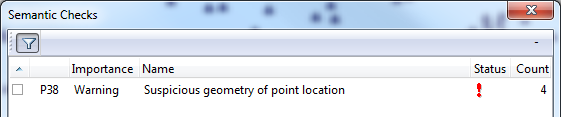
The Semantic Check shows on what streets the programm has found errors.
The errors are directly shown when using the filter.
- →Compare with Checker
 Important Advice
Only the major errors are shown in the structural checks, but not the warnings
When finished, due to the activation of the semantic check the codes with errors are shown.
To see them directly, Show Only Checks Containing Errors can be clicked.

The errors found in the Structural Checks, are visible when opening Checks\Structural Checks. Again, they are directly shown when activating the filter.

For exporting the information, the most suitable way is to do it by a Combined Report.
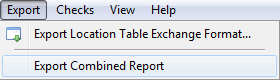
The file is saved as an Excel workbooks (*.xls) in the appropriate folder.
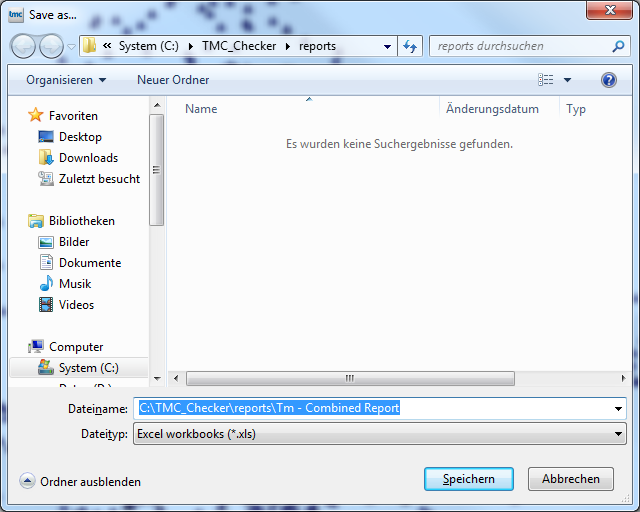
When clicking save, the excel file will automatically be opened. It show the different errors found while checking the TMC.


Important Advice
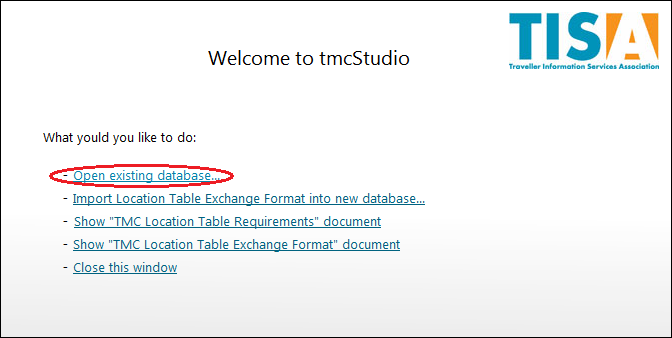
If the Check has to be redone, not all the data has to imported for a second time. When using it for again, at the Welcome-window Open existing database... is chosen for importing the data of the prior use.
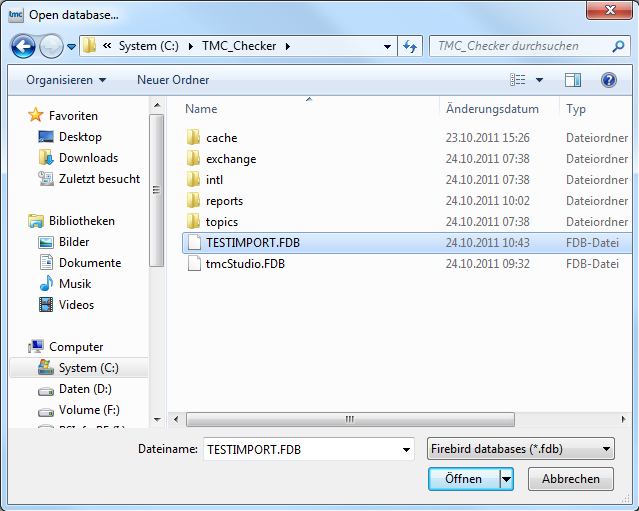
The file saved before is chosen and afterwards opened.
Important Advice
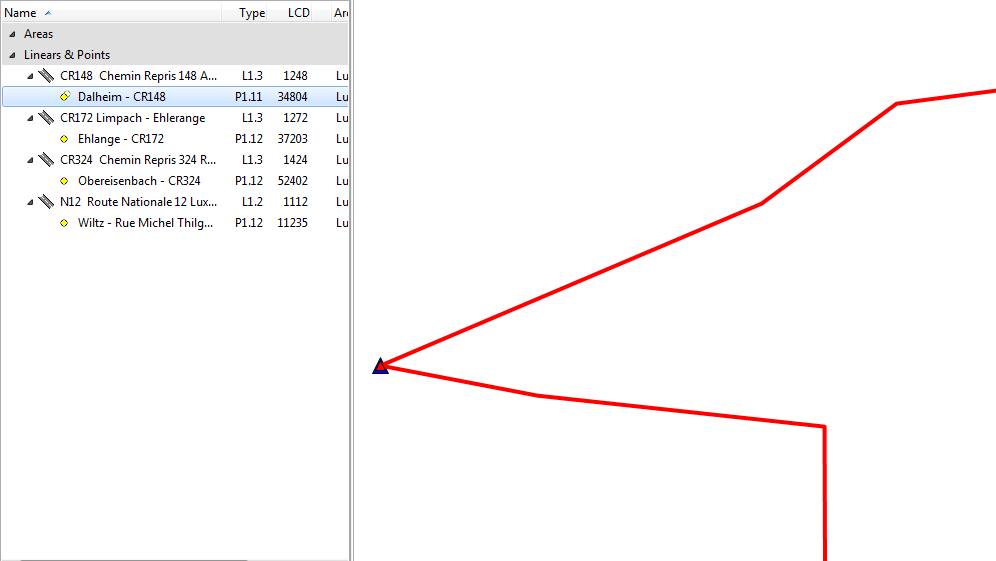
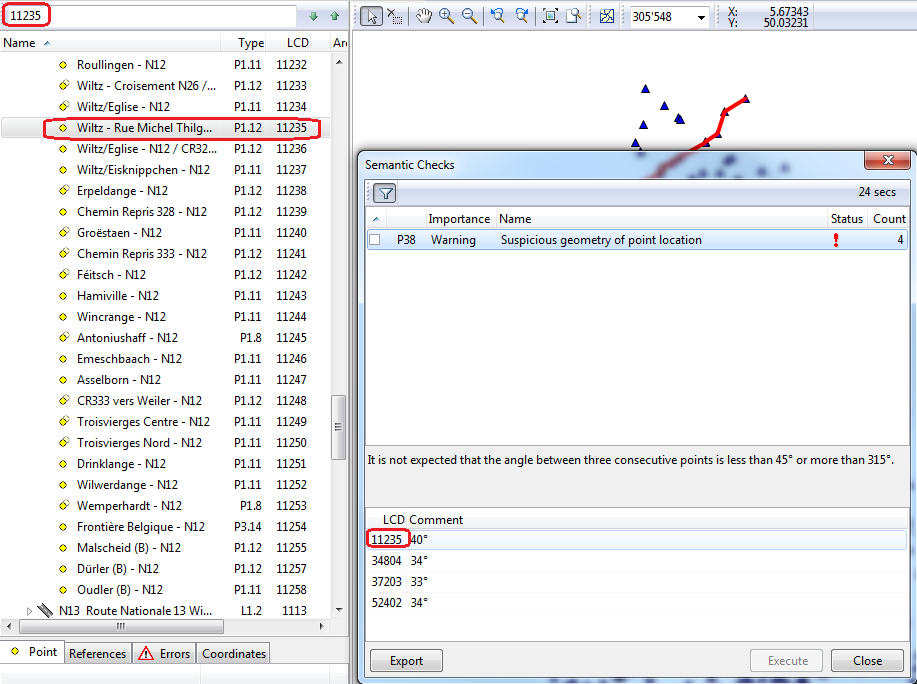
If the errors have to be visualized on the map, the LCD-Number of the street, given in semantic, respecitvely structural checks is searched in the tree by the Search Tree function.
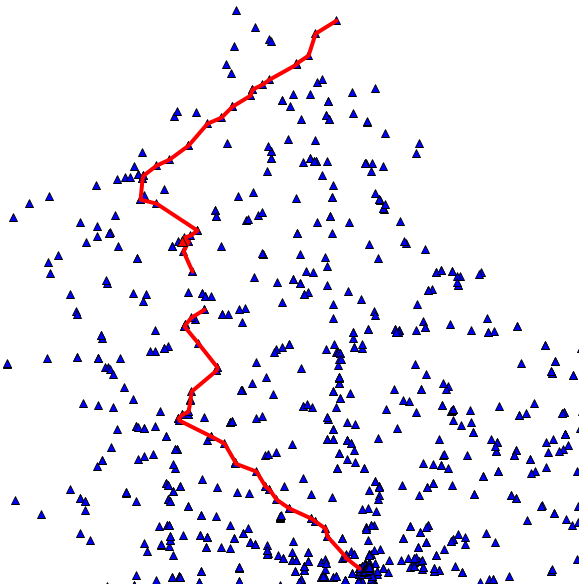
It's possible to have in the tree only the points containing errors. For this, the visibility settings have to be edited and the Semantic Errors activated by putting a tick in front of the error.